DX-Sky GCS

The basics of multi-aircraft control, mission planning and flight review, plus Sim-to-Real testing and remote AI model deployment, in a single browser-based environment.

DX-Sky GCS

DX-Sky GCS is a multi-UAV ground control system installed on a field PC and accessed through a browser. It controls multiple aircraft on a single map and brings mission planning, live video, deployment of settings, software and AI models, and flight record review into one environment. It also adds Sim-to-Real: launch simulated aircraft on the spot in the same GCS, test the AI models you develop on them, and apply them to real aircraft as they are.

Developed as a pair with DX-Sky Drone, which runs on the aircraft, it handles everything from aircraft registration to updates without separate tools.

What Sets DX-Sky GCS Apart

On top of the basics, we added Sim-to-Real: test the AI models you develop in simulation inside the same GCS and apply them to real aircraft as they are.
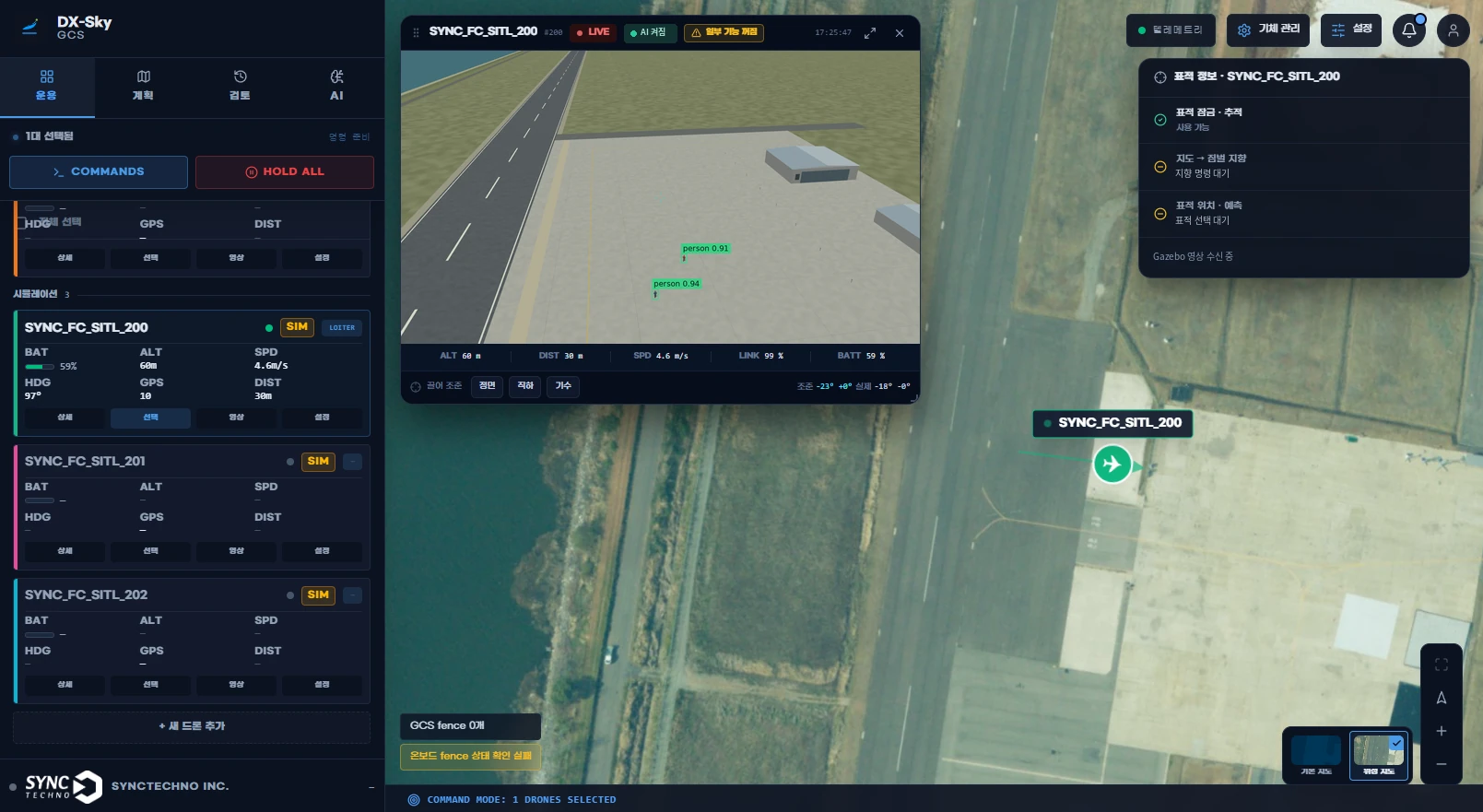
AI detection on video from a simulated aircraft in DX-Sky GCS

Sim-to-Real: test in the same GCS, then apply to real aircraft as it is

In the same GCS you use for real aircraft, load the AI model onto a simulated aircraft and check detection on virtual camera video. Models that pass testing are deployed to real aircraft from the same GCS after approval.
  • Managed in the order import, test, approval; only approved models are deployed to real aircraft
  • Unapproved models run only on simulated and test aircraft
  • Simulation and real aircraft share the same screens and deployment path, so a model goes to real aircraft as it is, without another tool
  • Tested in Gazebo and NVIDIA Isaac Sim
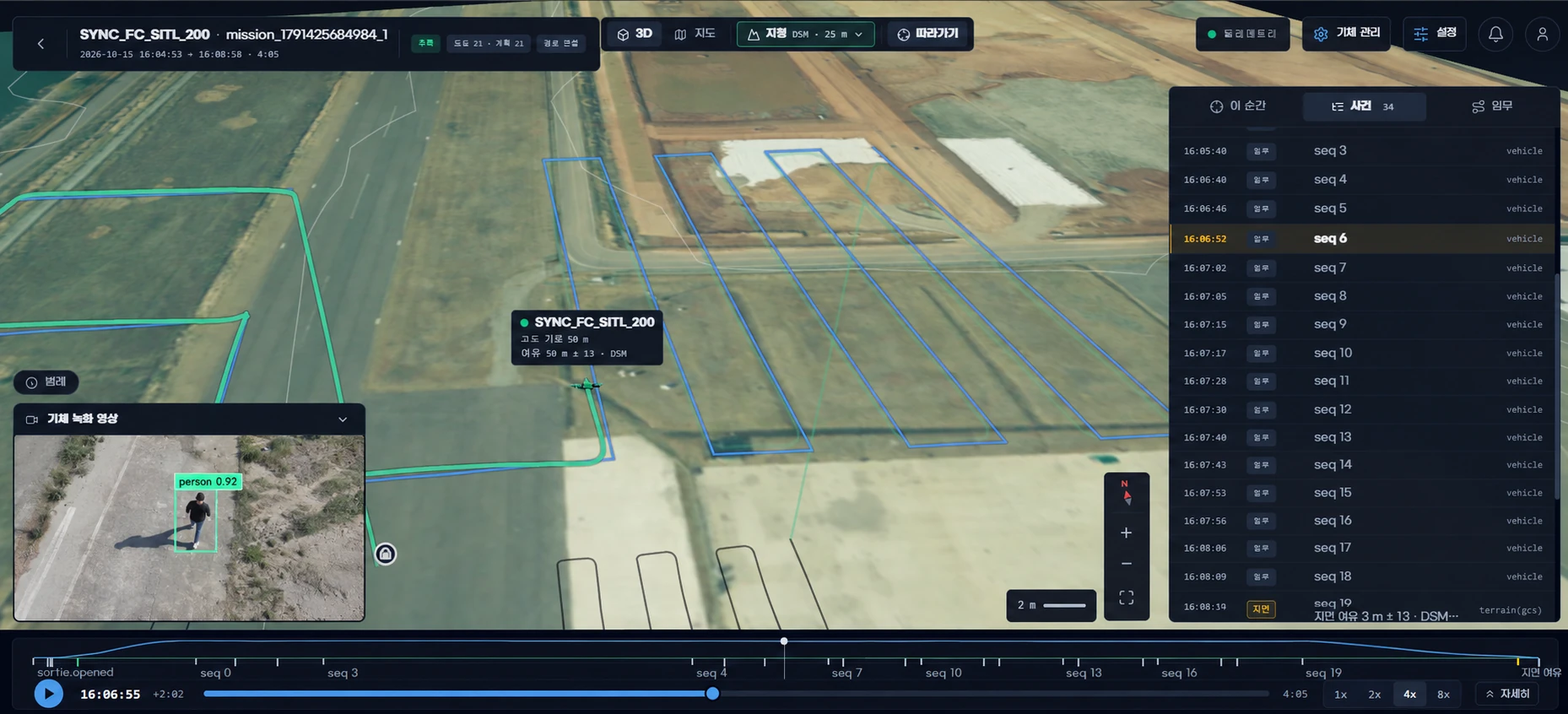
Mission flown in a simulated environment with AI detection in DX-Sky GCS

Upload any environment and test in it

Whatever site, facility or terrain you want to test, upload it to the GCS as a world file. It takes effect immediately, so you can choose it as soon as you start a simulation.
  • Add the environment you want by uploading a world file (.world) and model files
  • Mark worlds that contain detection targets such as people and vehicles to test AI detection
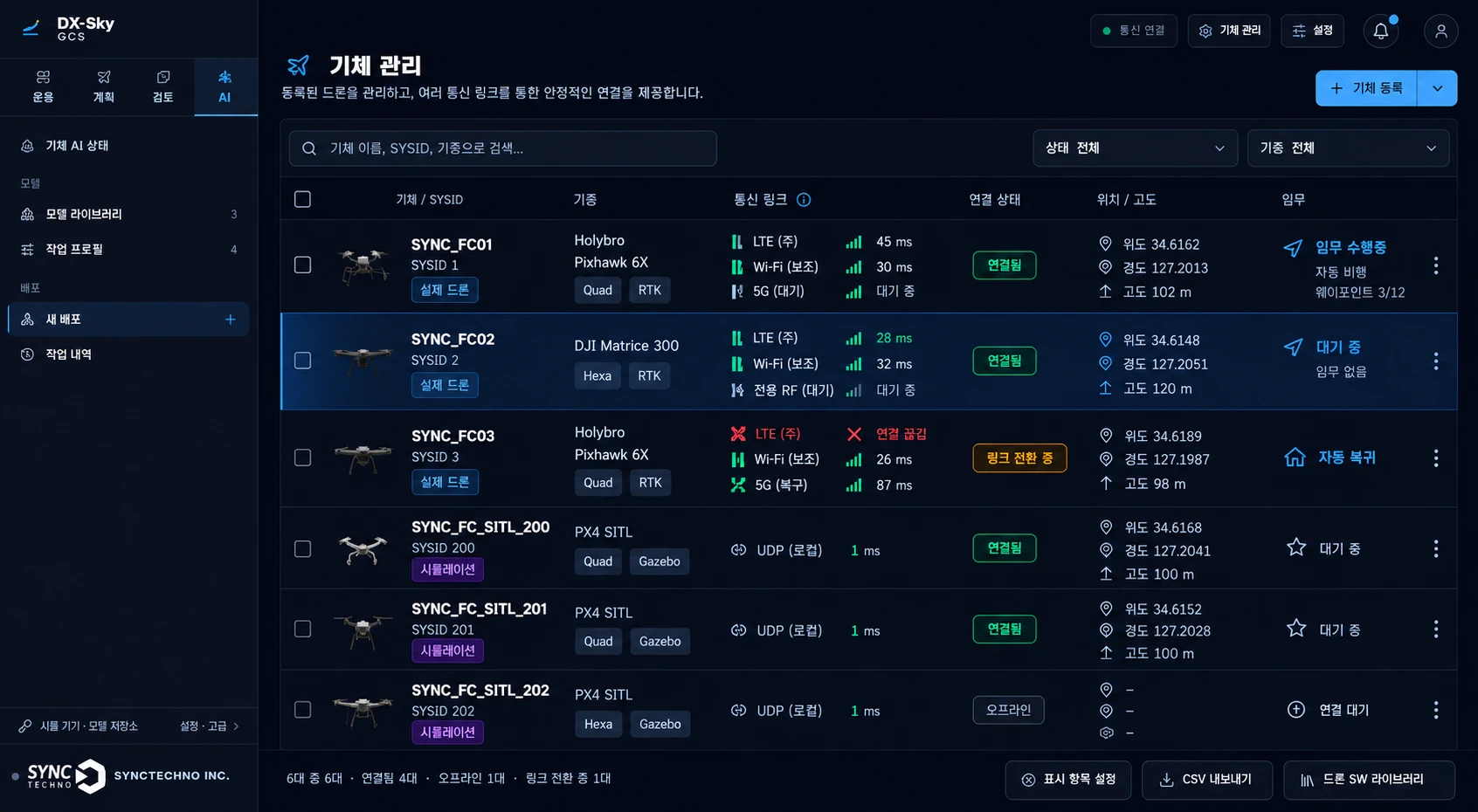
Per-aircraft communication link status in the DX-Sky GCS aircraft management screen

Managing multiple links and switching connection paths

Keep several links such as LTE and Wi-Fi connected at the same time and switch between them automatically according to link status. The GCS manages the individual links as one combined connection, so operators do not have to manage each link separately.
  • Keep LTE, Wi-Fi and other links connected together and switch automatically with link status
  • Assign primary, secondary and recovery priorities to each link, so a secondary link takes over when the primary link drops
  • Check each link's connection status on screen and add or remove links
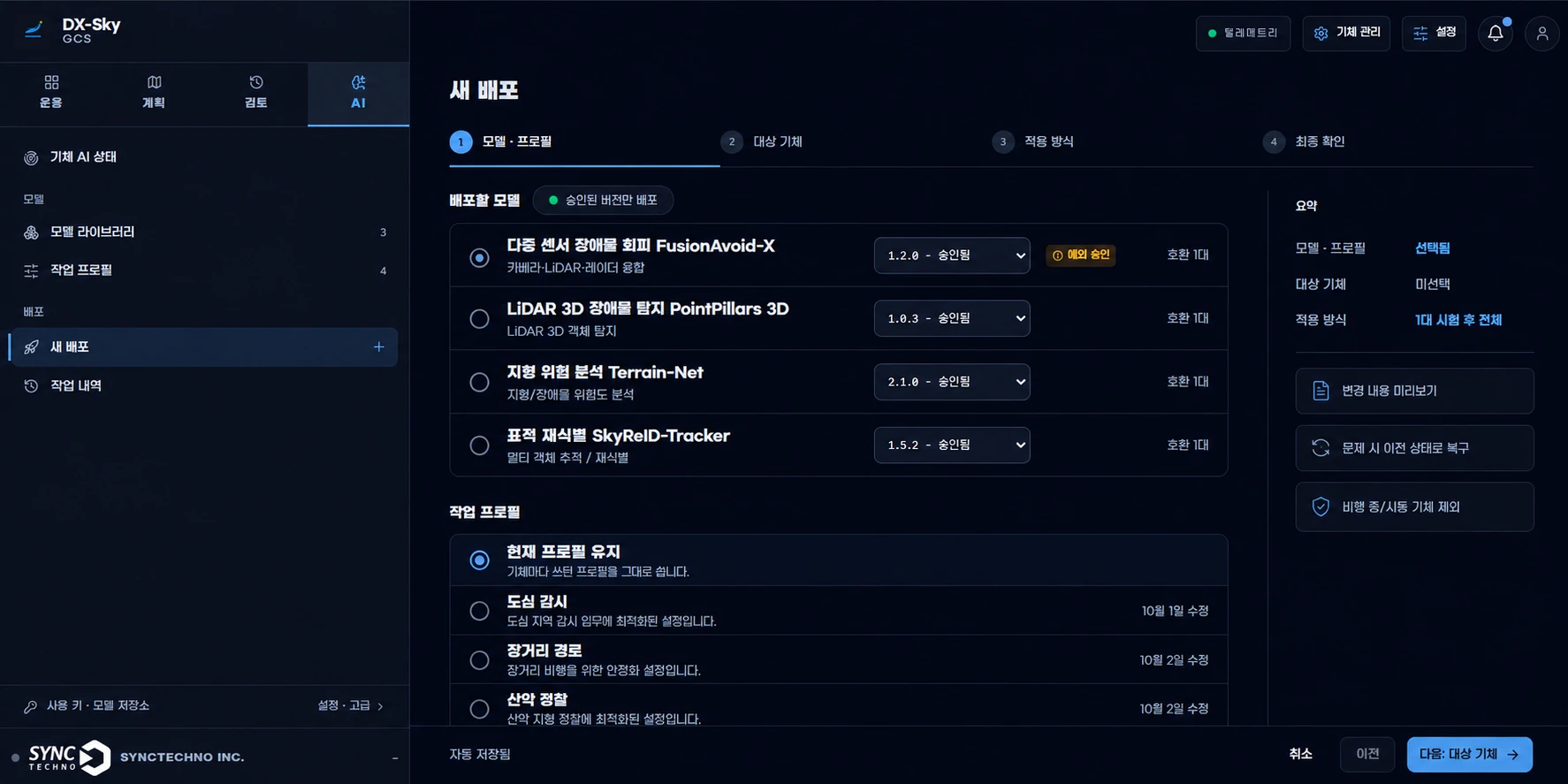
DX-Sky GCS new deployment screen

Deploy AI models and settings to multiple aircraft in stages, and roll back if anything goes wrong

Choose a model and work profile, select target aircraft and a rollout method, and deploy after a final check. Aircraft settings and onboard software are delivered the same way.
  • A four-step deployment screen: model and profile, target aircraft, rollout method and final check
  • Only models that have passed change preview and approval are deployed
  • Test on one aircraft first, then apply to the rest, and roll back to the previous state if a problem occurs
  • Nothing is applied to an aircraft that is flying or armed
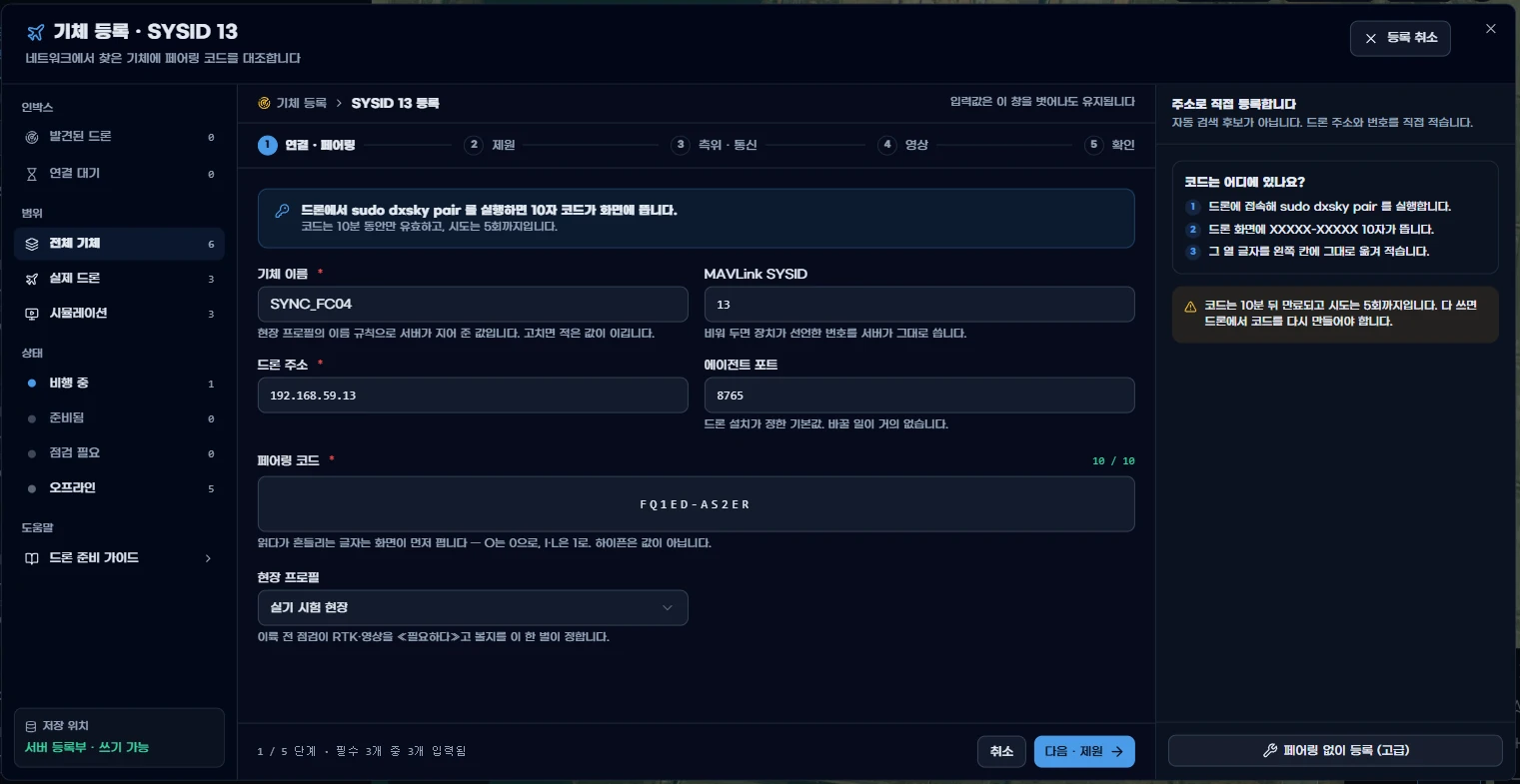
Pairing code entry in the DX-Sky GCS aircraft registration screen

Secure Pairing: a single one-time code lets the GCS and the aircraft verify each other

No built-in shared password or copyable token: the aircraft's own unique key and a one-time code let the GCS and the aircraft verify each other. Every communication afterwards is digitally signed so no other device can pass itself off as either.

  • Each aircraft is identified by its own unique key; there is no shared password
  • A code works once and expires soon, and wrong attempts are limited to block guessing
  • Signatures carry a timestamp and a one-time value, so a replayed command is rejected
  • Unsigned requests are refused, so configuration changes and updates come only from the paired GCS
  • A different device at the same address, or an aircraft paired with another GCS, triggers a warning; replaced only after confirmation
  1. Issue the codeThe aircraft generates a one-time code, valid for 10 minutes by default.
  2. Enter the codeIn the GCS, select the aircraft and enter the code.
  3. Verify each otherThe GCS and the aircraft confirm that each knows the code, then register each other's identity.
  4. Signed communicationEvery request and response afterwards is digitally signed, preventing forgery and replay.
Security that accepts only what is verifiedAircraft register with a key they generate themselves and a one-time code, and only installation bundles and settings with a verified signature are applied. Each function has its own account with only the privileges it needs.
Runs on a single field PCInstall it on a Windows PC and operate it standalone in the field without cloud services. Maps can be saved in advance for use where the internet is unstable.
Real and simulated aircraft on one screenReal and simulated aircraft are listed separately and handled with the same map and command screens.

Core Features for Operations

From multi-aircraft control and mission planning to flight review, all of it is provided as standard.
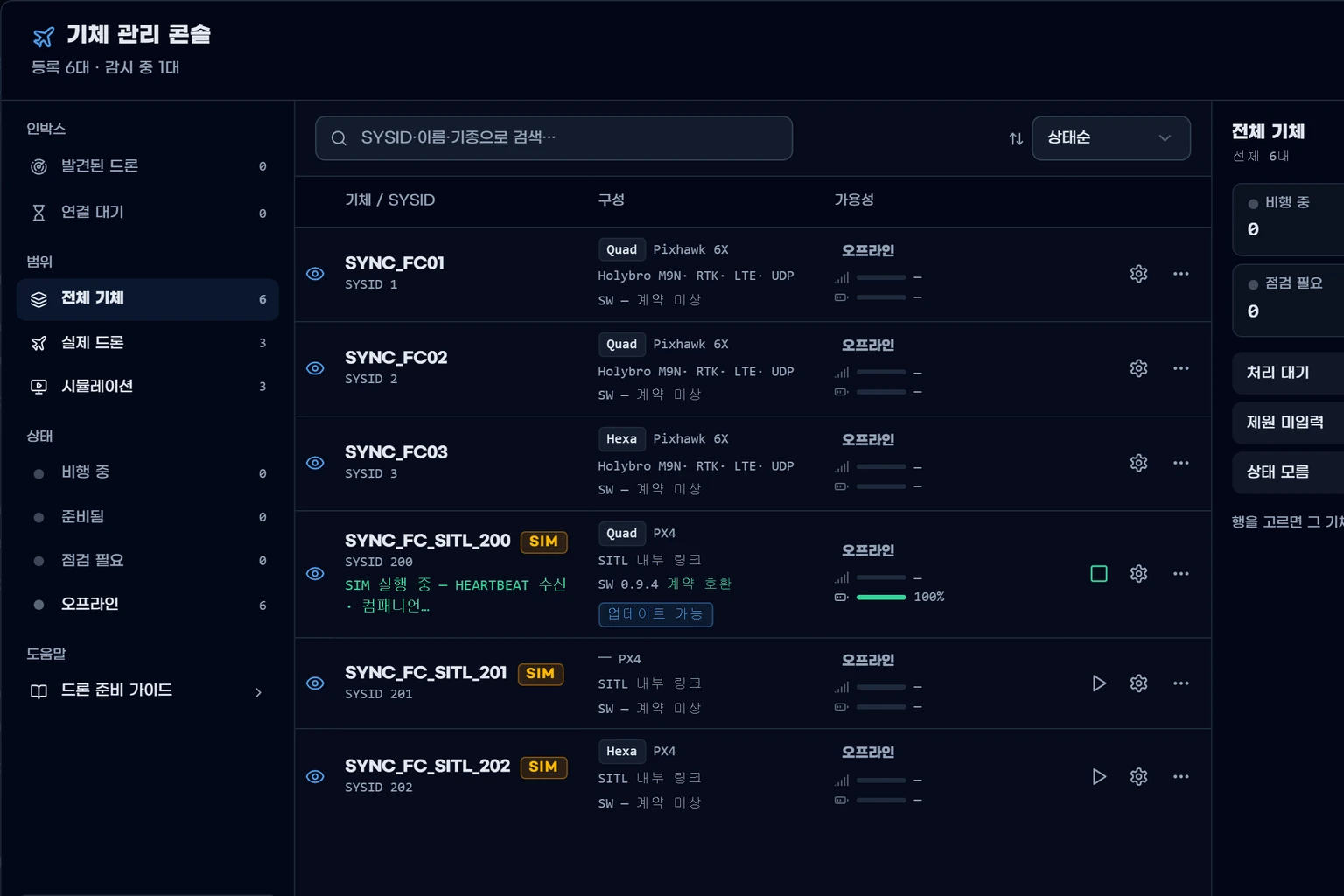
DX-Sky GCS aircraft management console
Aircraft managementDiscovery and registration, filtering by status, configuration and version
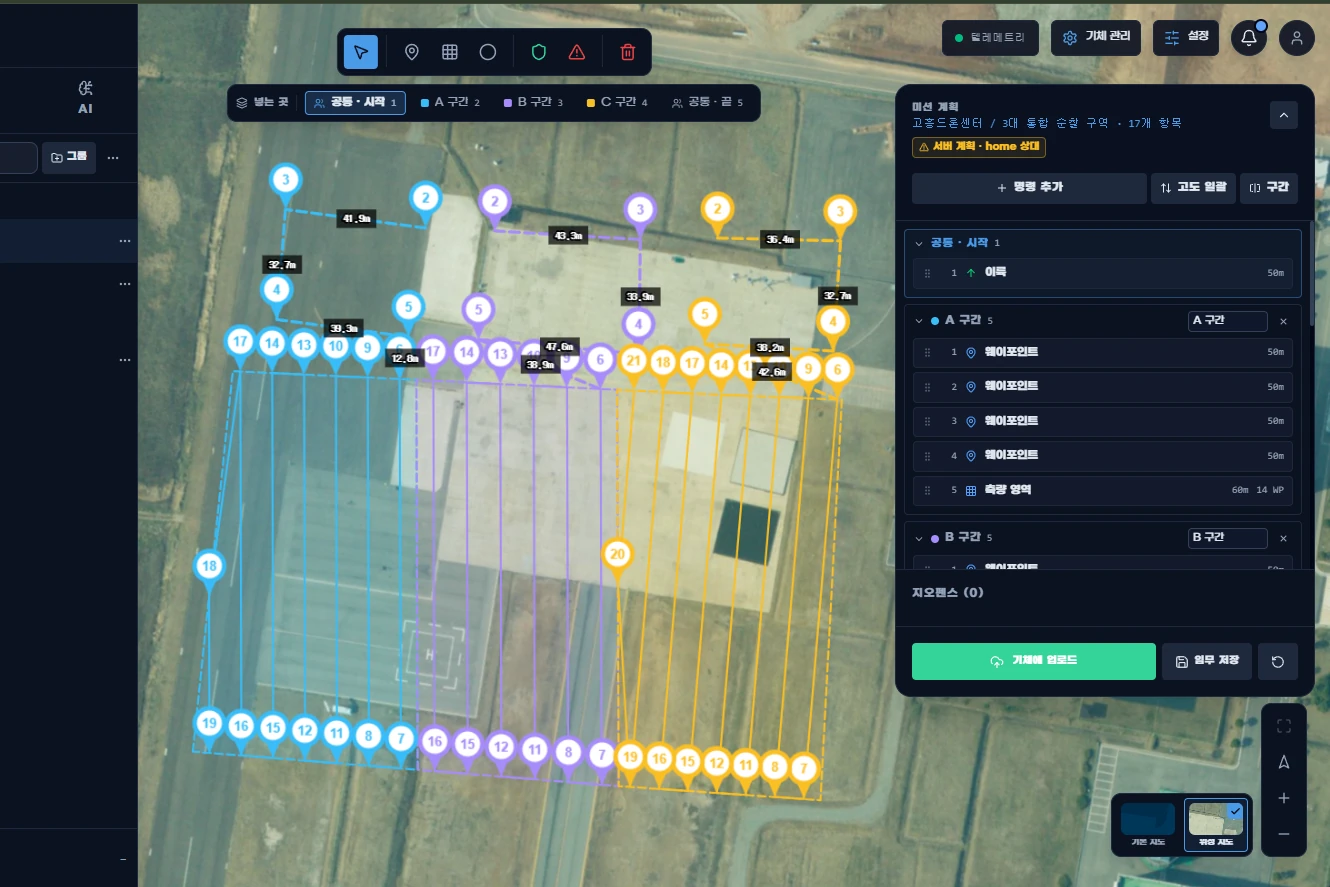
DX-Sky GCS mission planning screen
Mission planningWaypoints, survey areas and geofences, splitting into zones
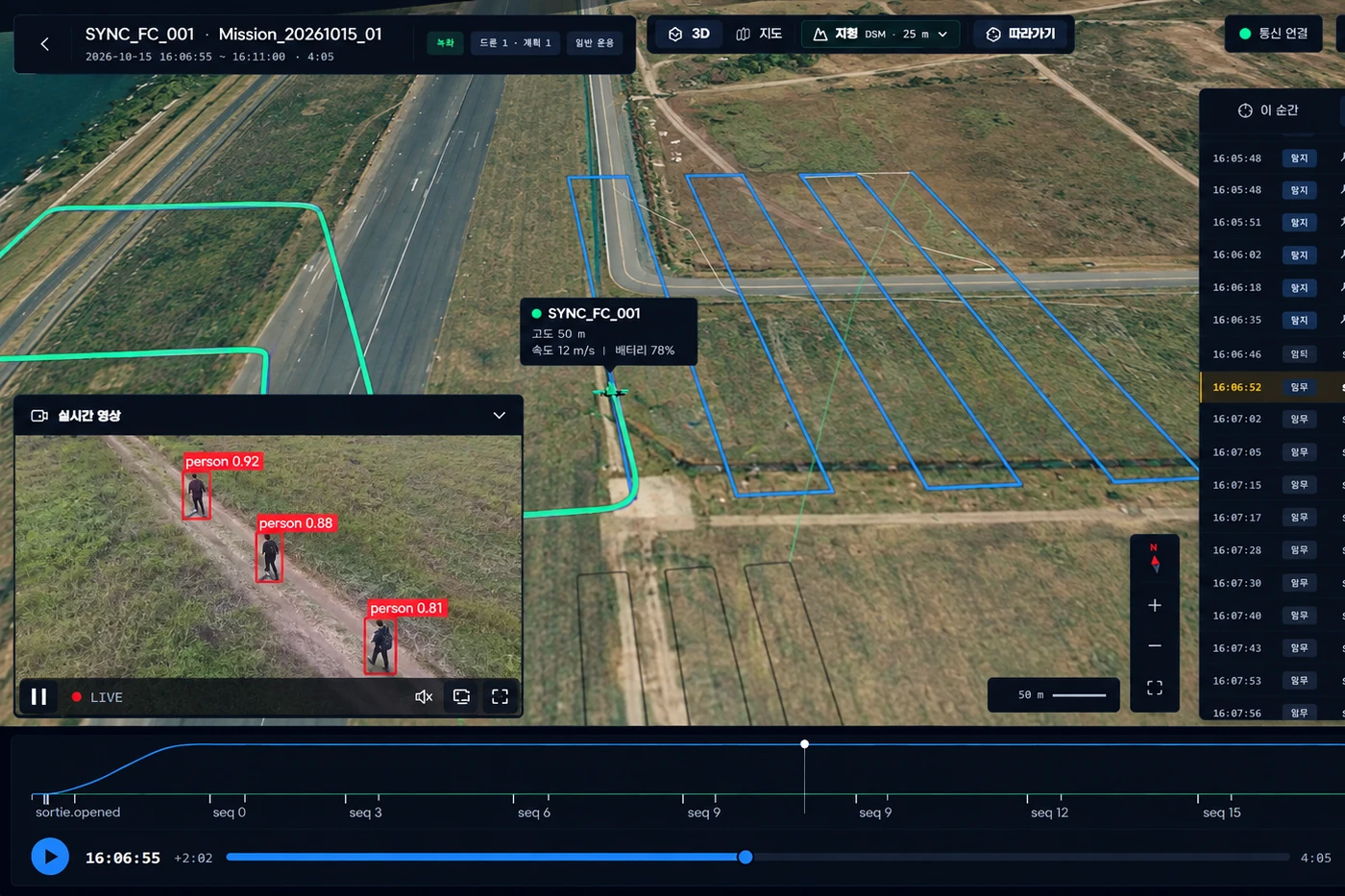
DX-Sky GCS video and AI detection screen
Video and AI detectionLive video with detection results drawn as boxes
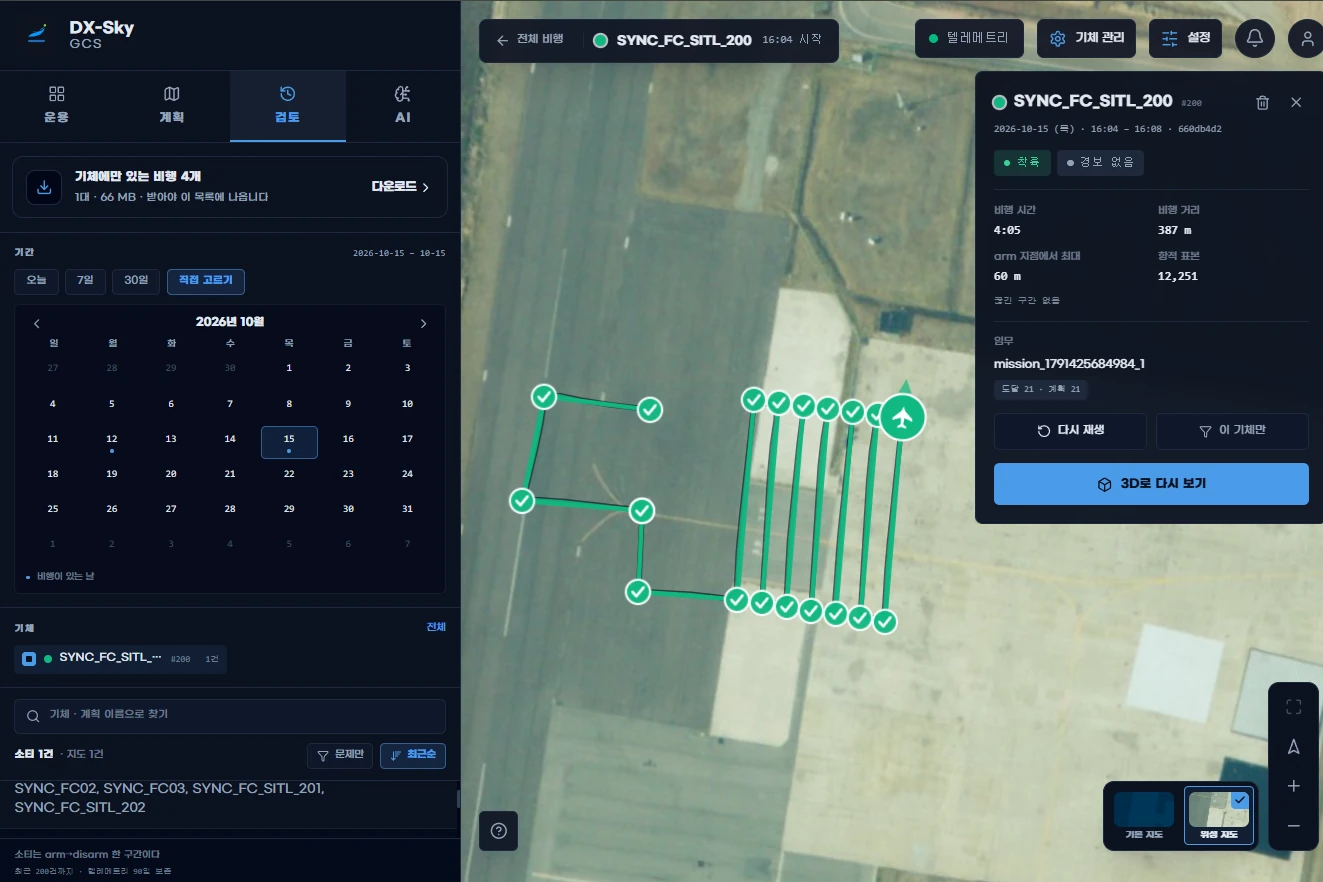
DX-Sky GCS flight review screen
Flight reviewBrowse by period and aircraft, replay on the map, view in 3D
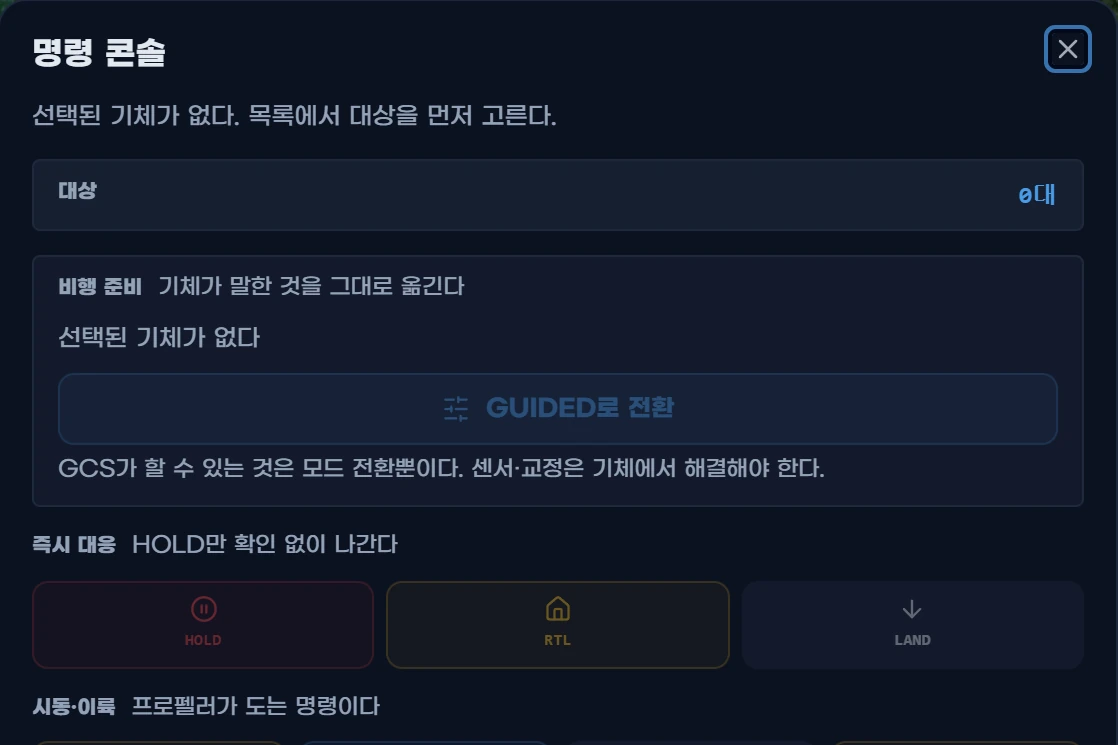
DX-Sky GCS command console
Command consoleHold, return and land, arm and takeoff, mission control, speed and altitude
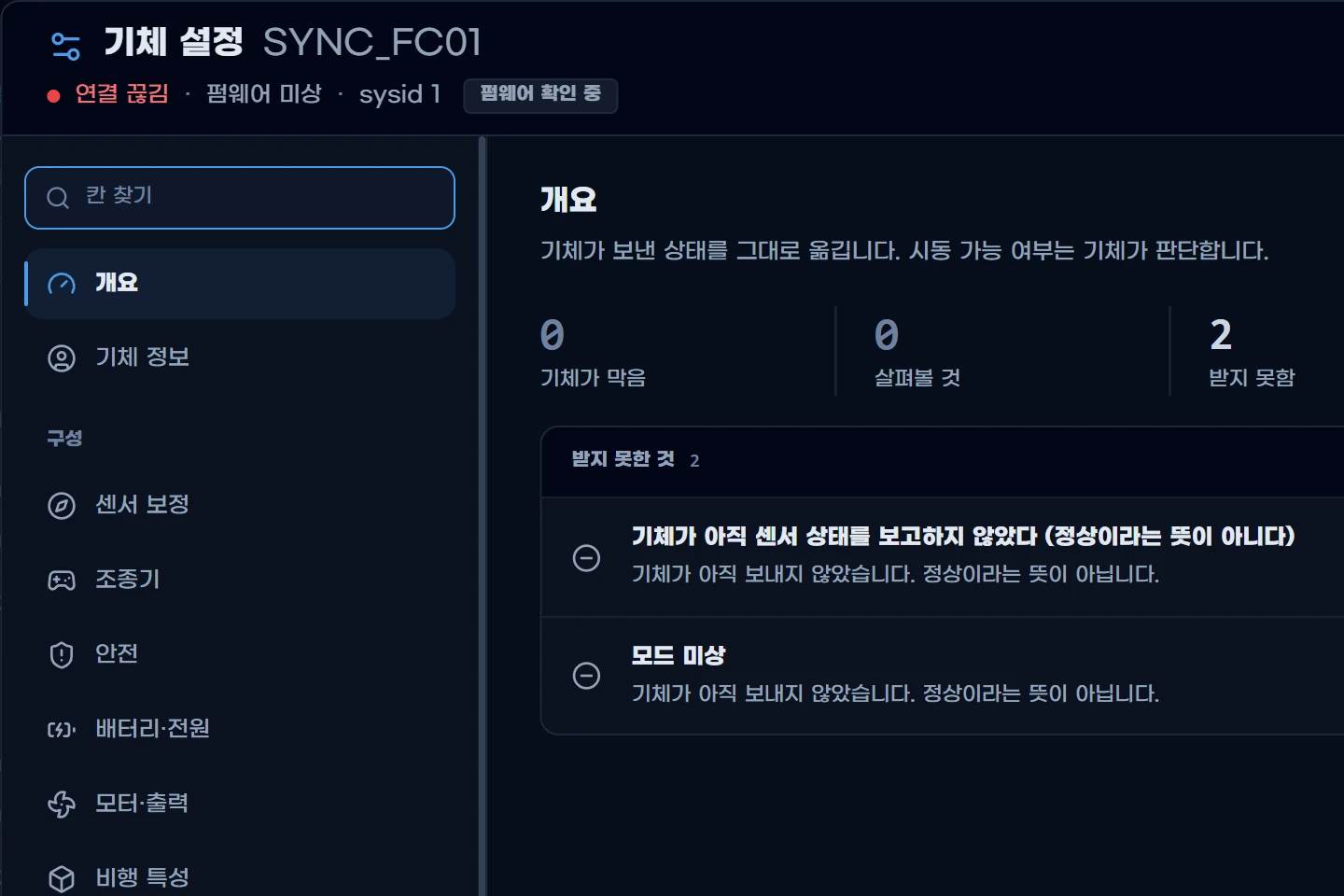
DX-Sky GCS aircraft settings screen
Aircraft settingsSensor calibration, remote controller, safety, battery, motor output, payload
01Multi-aircraft control

View position, track, altitude, speed, battery and GPS status for multiple aircraft on one map, and hold all aircraft at once. The server checks safety conditions before a command is relayed.

02Live video and AI detection

Watch live video from the aircraft and operate the camera and gimbal. When AI inference runs on the aircraft, detection results are drawn as boxes over the video.

03Offline maps

Maps of the areas you need can be saved in advance for sites with unstable internet.

04Accounts and permissions

Administrator and operator accounts control which functions each user can use.

Operating Environment

RunWindows 11 or later, Ubuntu 22.04 or later

AircraftConnects to PX4 or ArduPilot multicopters equipped with DX-Sky Drone.

CommunicationThe aircraft communicate over LTE/5G, Wi-Fi and other links, and several links can be connected together and switched between.

View DX-Sky Drone, the software installed on the aircraft

← Back to DX-Sky Products